Appearance
Cloud Integration
Cloud Integration connects the local collector to NeoGT Cloud so device readings can be synchronized to the hosted dashboard.
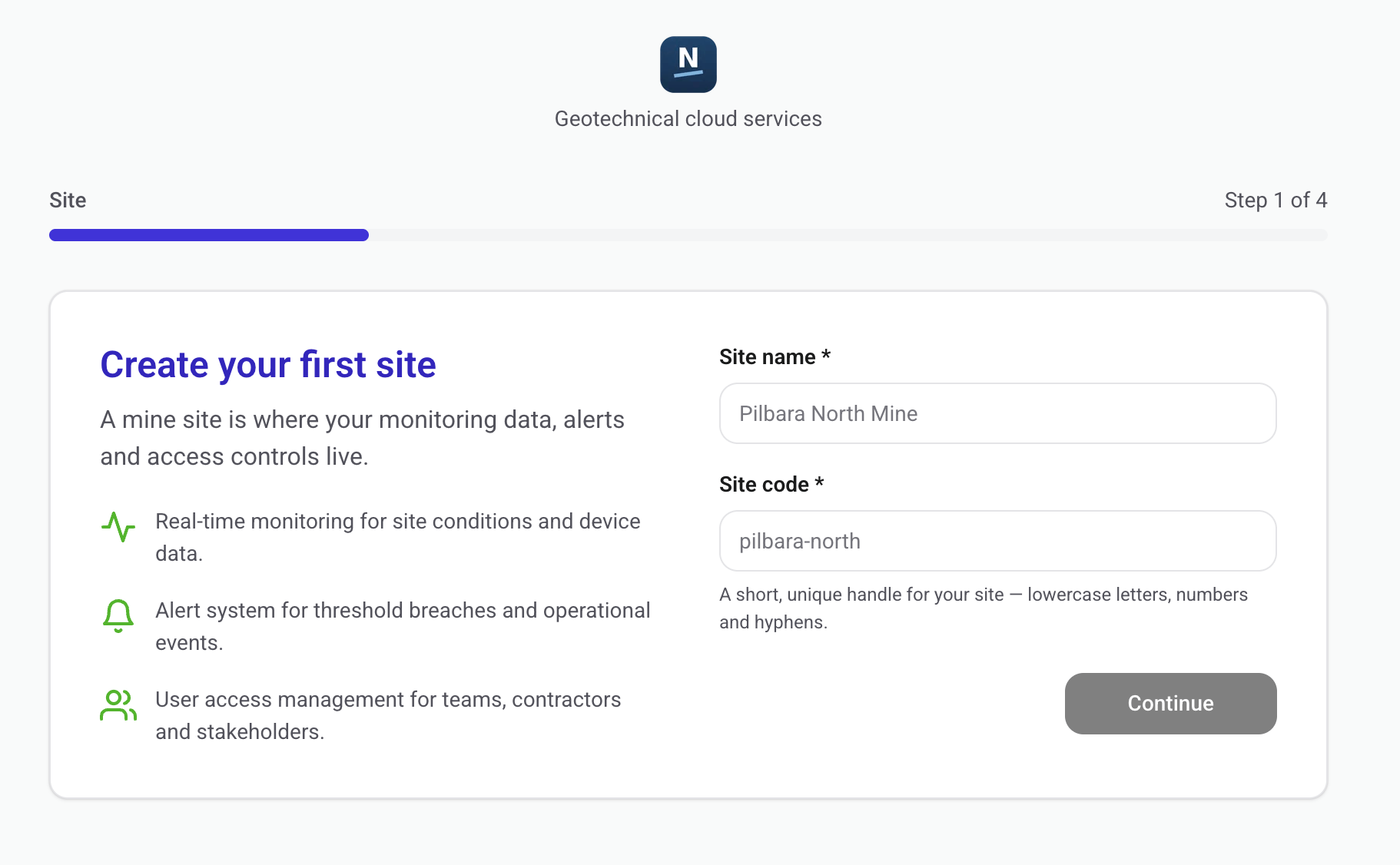
Create a NeoGT Cloud account
Open NeoGT Cloud:
txt
https://cloud.neogt.com.auCreate an account or sign in with an existing account, then follow the onboarding steps in the cloud dashboard.
Connect a collector
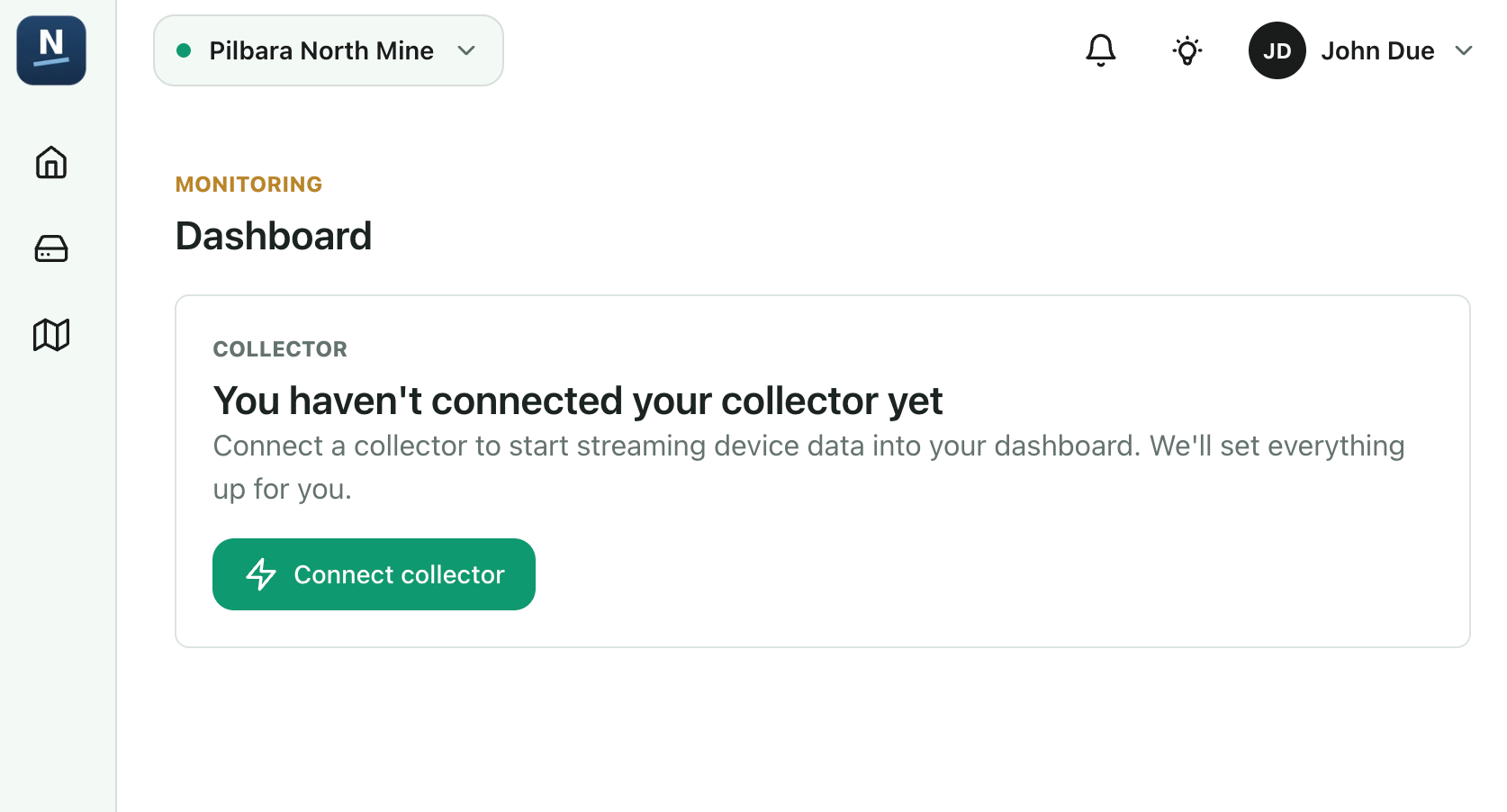
After the cloud dashboard opens, look for the widget or action to connect a collector.
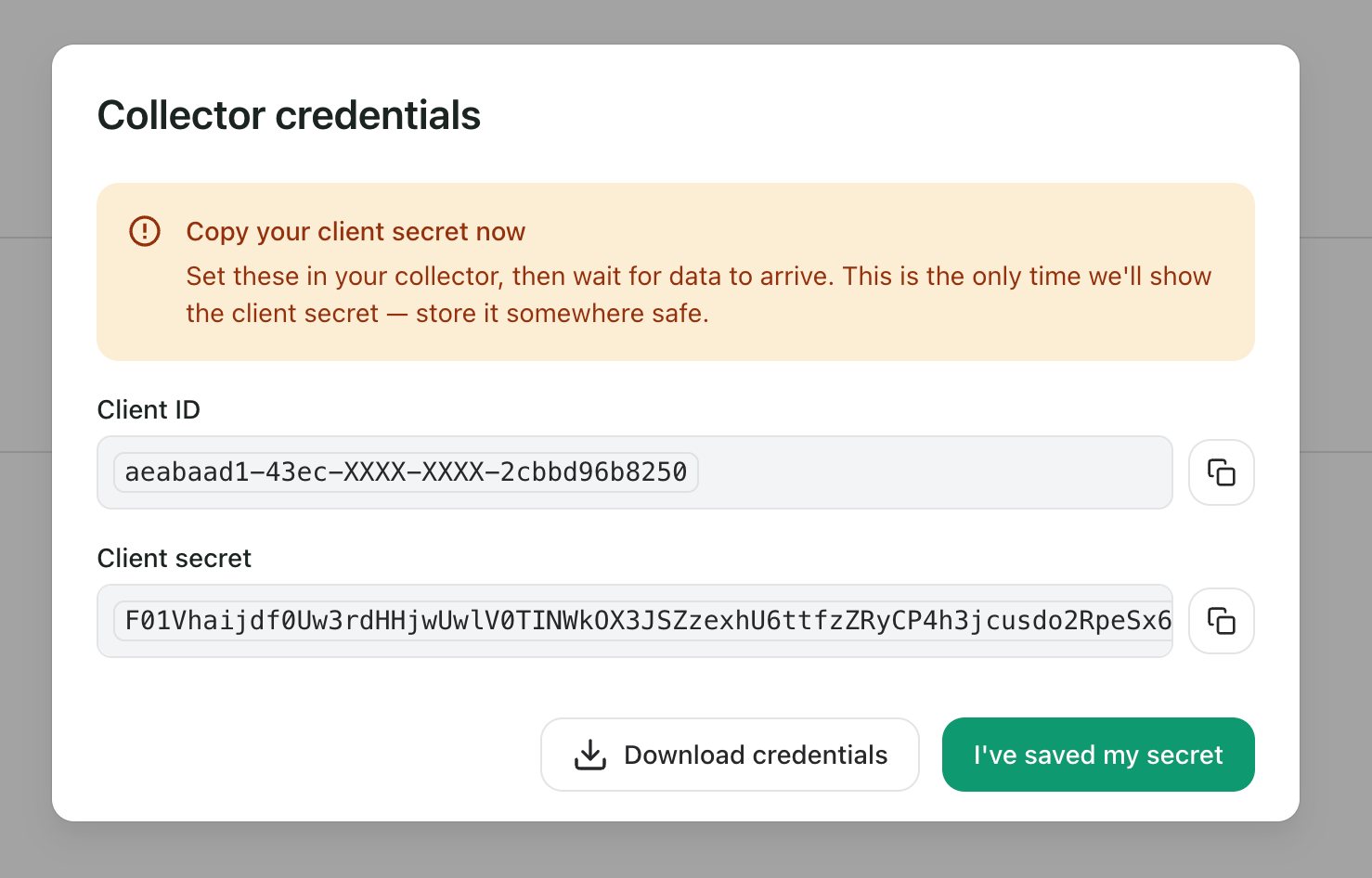
Click the connect collector widget. The cloud app provisions a collector machine account for your site and returns credentials for the local collector.
Record both values:
client_idclient_secret
Save the secret
The client_secret is sensitive. Store it securely and do not share it outside the team responsible for the collector. If it is lost or exposed, generate a new collector credential and update the local collector settings.
Open local collector settings
Open the local tiltmeter collector dashboard.
Go to:
txt
Settings -> GeneralFind the Cloud Sync Configuration section.
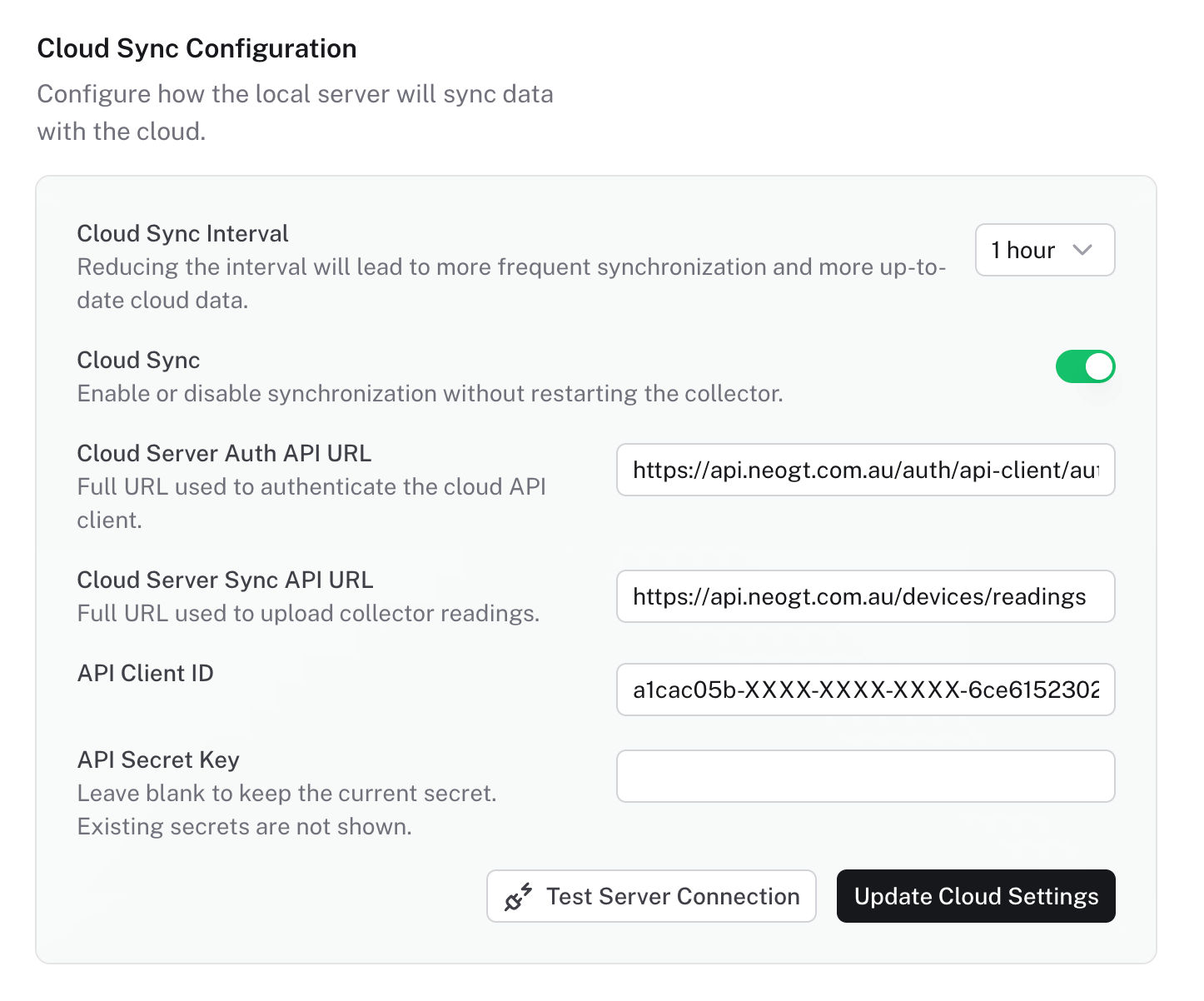
Enter cloud sync settings
In Cloud Sync Configuration:
- Set Cloud Sync to enabled.
- Paste the
client_idinto API Client ID. - Paste the
client_secretinto API Secret Key. - Choose the Cloud Sync Interval.
- Click Update Cloud Settings.
Advanced API configuration
The default cloud server settings connect the collector to NeoGT Cloud and should not be changed for a standard setup.
If you need to connect to another cloud server, or send collector data directly to another destination instead of NeoGT Cloud, review the API Reference before changing the authentication or readings endpoints.
Check the connection
Click Test Server Connection in the local collector settings.
If the credentials and server URL are correct, the collector should report a successful connection.
If the connection test fails, check:
- The
client_idwas copied exactly. - The
client_secretwas copied exactly. - Cloud Sync is enabled.
- The local collector has internet access.
- The collector can reach the NeoGT Cloud API through the site firewall.
Verify cloud synchronization
After the connection test passes, wait for the next cloud sync interval.
Confirm that:
- Local collector readings are still arriving.
- The collector logs do not show
cloud_syncfailures. - The cloud dashboard shows the expected devices or recent readings.
- The last cloud sync timestamp updates.
If data does not appear in NeoGT Cloud, check the collector logs and the Cloud Sync Configuration values before regenerating credentials.