
Appearance
Collector software setup
Use the Collector Installer app to install the local NeoGT collector, dashboard, database, and supporting services.
Before you start
Confirm that the machine has:
- Docker installed and running, or permission to install Docker from the installer app.
- Internet access to pull the production images from GHCR.
- Access to the official software releases repository: neotech-australia/software-releases.
- An available dashboard port. The default is
443.
For Docker Compose setup without the installer app, use Manual installation.
Using installer app
The installer app creates the runtime folder, generates local credentials, creates a self-signed localhost TLS certificate, pulls the production Docker images, and starts the Docker Compose stack.
The installer app writes generated admin and database credentials to credentials.txt in the install folder.
Download the installer for the target operating system from the official software releases repository:
github.com/neotech-australia/software-releases
The installer binaries are stored in the repository bin/ folder.
| Operating system | Default install folder |
|---|---|
| macOS | ~/Library/Application Support/TiltmeterPlatform |
| Windows | %LOCALAPPDATA%\TiltmeterPlatform |
| Linux | ~/.local/share/tiltmeter-platform |
Install with the GUI
Choose the tab for the target machine.
- Open neotech-australia/software-releases and download
bin/tiltmeter-collector-installer-mac-arm64-0.1.0.dmg. - Open the DMG file.
- Drag
Tiltmeter Collector Installer App.apptoApplications. - Open
Tiltmeter Collector Installer AppfromApplications. - Check the Docker status shown by the installer.
- Enter the dashboard port, or keep the default value
443. - Start the install.
- Wait for Docker checks, image pulls, certificate generation, and stack startup to complete.
- Open
https://localhost:<Dashboard Port>in a browser.
- Open neotech-australia/software-releases and download
bin/tiltmeter-collector-installer-win64-0.1.0.exe. - Double-click the EXE file.
- Check the Docker status shown by the installer.
- Enter the dashboard port, or keep the default value
443. - Start the install.
- Wait for Docker checks, image pulls, certificate generation, and stack startup to complete.
- Open
https://localhost:<Dashboard Port>in a browser.
- Open neotech-australia/software-releases and download
bin/tiltmeter-collector-installer-linux-x64-0.1.0. - Make the downloaded file executable if the desktop environment asks for permission.
- Open the installer.
- Check the Docker status shown by the installer.
- Enter the dashboard port, or keep the default value
443. - Start the install.
- Wait for Docker checks, image pulls, certificate generation, and stack startup to complete.
- Open
https://localhost:<Dashboard Port>in a browser.
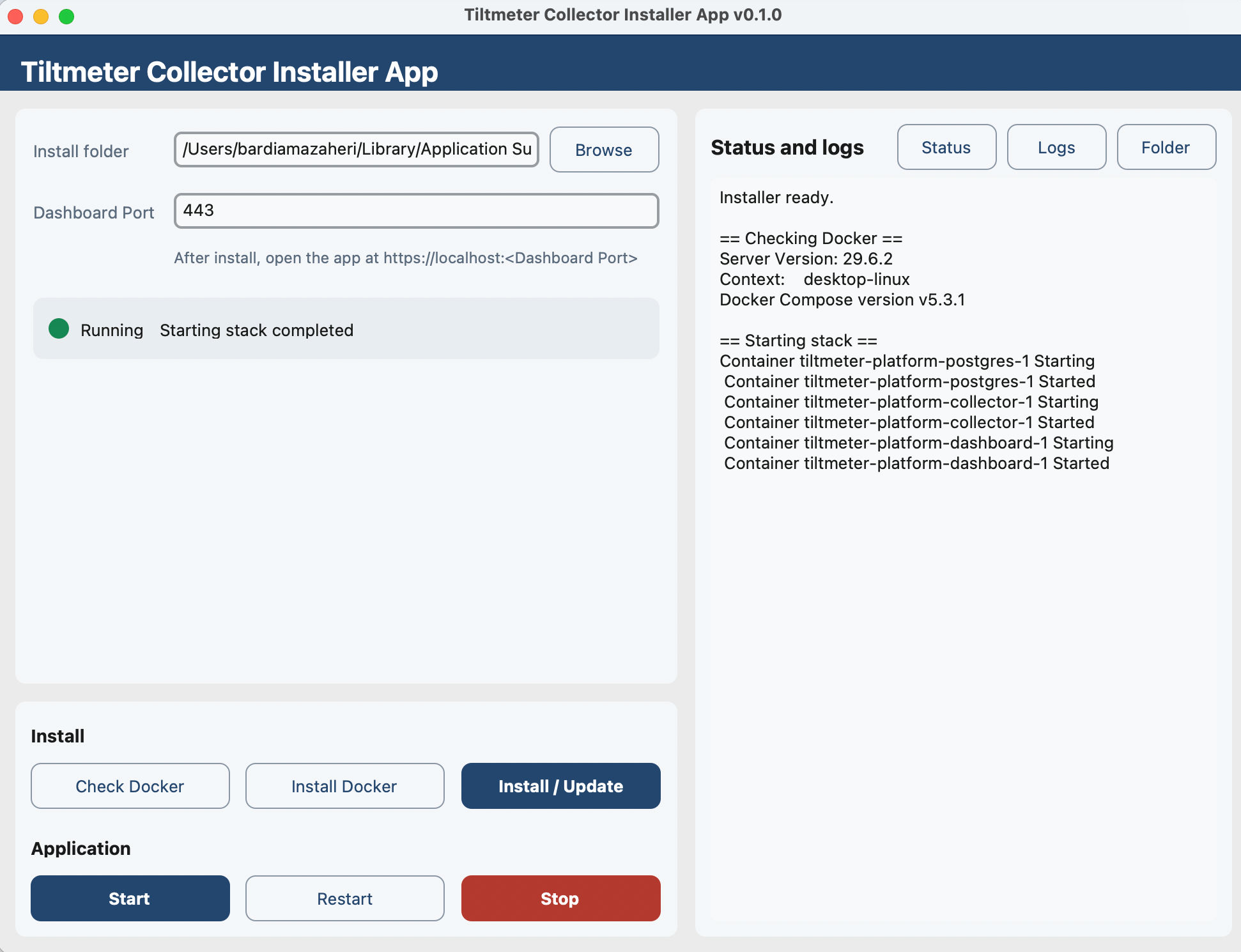
If the browser warns that the localhost certificate is not trusted, continue to the local dashboard. The certificate is generated locally by the installer for the machine.
Installer output
The installer uses these production images:
| Image | Value |
|---|---|
| Collector | ghcr.io/neotech-australia/tiltmeter-platform/collector:latest |
| Dashboard | ghcr.io/neotech-australia/tiltmeter-platform/dashboard:latest |
The local dashboard is available at:
txt
https://localhost:<Dashboard Port>For the default port:
txt
https://localhost:443Headless install
Use the same installer from a terminal on machines without a GUI, or when installing over SSH. The terminal output shows Docker checks, image pulls, stack startup, status, and logs.
bash
"/Applications/Tiltmeter Collector Installer App.app/Contents/MacOS/Tiltmeter Collector Installer App" install --dashboard-port 443powershell
cd ..\bin
.\tiltmeter-collector-installer-win64-0.1.0.exe install --dashboard-port 443
bash
cd ../bin
chmod +x ./tiltmeter-collector-installer-linux-x64-0.1.0
./tiltmeter-collector-installer-linux-x64-0.1.0 install --dashboard-port 443
If the selected dashboard port is already in use, install stops before changing the stack. To continue anyway, add --yes.
bash
"/Applications/Tiltmeter Collector Installer App.app/Contents/MacOS/Tiltmeter Collector Installer App" install --dashboard-port 443 --yespowershell
.\tiltmeter-collector-installer-win64-0.1.0.exe install --dashboard-port 443 --yesbash
./tiltmeter-collector-installer-linux-x64-0.1.0 install --dashboard-port 443 --yesStatus and logs
bash
"/Applications/Tiltmeter Collector Installer App.app/Contents/MacOS/Tiltmeter Collector Installer App" status
"/Applications/Tiltmeter Collector Installer App.app/Contents/MacOS/Tiltmeter Collector Installer App" logs --tail 300
powershell
cd ..\bin
.\tiltmeter-collector-installer-win64-0.1.0.exe status
.\tiltmeter-collector-installer-win64-0.1.0.exe logs --tail 300
bash
cd ../bin
./tiltmeter-collector-installer-linux-x64-0.1.0 status
./tiltmeter-collector-installer-linux-x64-0.1.0 logs --tail 300
Common commands
Append one of these commands after the installer executable path:
bash
check-docker
install-docker
install --dashboard-port 443
start
stop
restart
status
logs --tail 300